Convert STEP to STL
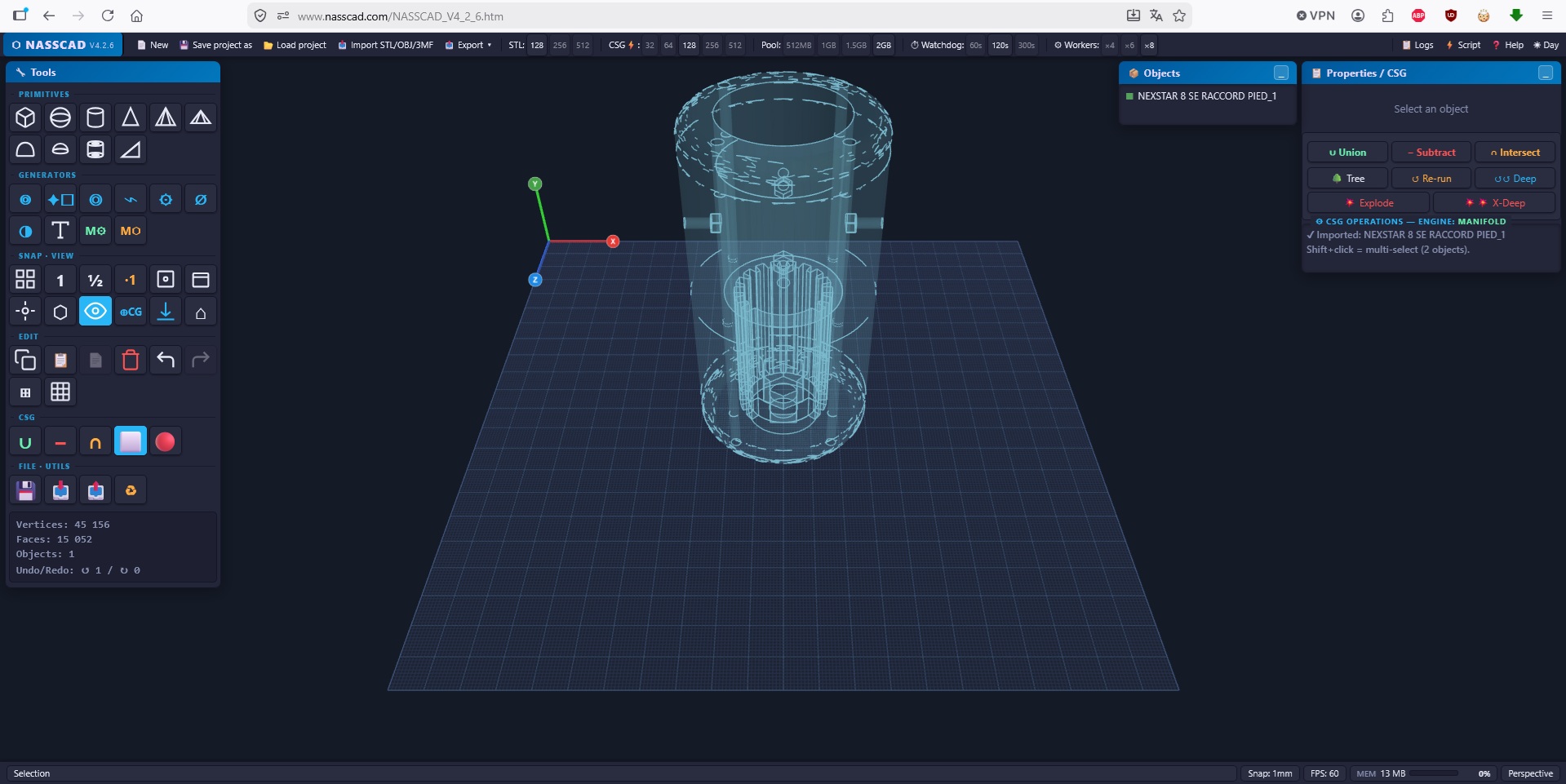
Drop a STEP file below. NASSCAD opens it in this tab, shows its parts, and offers Export as STL as soon as it has loaded. The conversion runs on your computer — the file never leaves it.
Then choose Import. Files are read on your computer and never uploaded.
Three steps
- Drop the STEP file in the box above, or open NASSCAD and choose Import. AP203, AP214 and AP242 files are supported, including compressed .stpz.
- Check the parts. Assemblies open as folders of named bodies with their colours. Hide or select what you need; in the Export menu, Include chooses between the whole design and the selected shapes.
- Export as STL. Binary STL is the compact default. ASCII STL, in the same menu, writes one named solid per body.
How smooth will the STL be?
A STEP file stores exact surfaces; an STL stores flat triangles. NASSCAD tessellates the STEP surfaces when it imports them, keeping sharp edges sharp and curved faces smooth, and the STL receives that mesh. The Performances › STL setting (128, 256 or 512 curve segments) applies to the parts you model or generate in NASSCAD: 128 segments is already finer than a 0.4 mm FDM nozzle can print.
Units and orientation
STEP files declare their unit and NASSCAD converts it on import, so an inch-based part arrives at its true size. The STL is written in millimetres with Z pointing up, which is what slicers expect.
When the STL will not slice
Slicers want closed, watertight shells. A STEP body made of surfaces rather than a solid becomes an open mesh, and some slicers refuse or repair it. The import log flags non-manifold bodies. If a part was modelled as surfaces, close it in the original program, or rebuild it in NASSCAD from primitives.
Prefer 3MF?
3MF keeps what STL drops: units, part names and colours, in one compact file that current slicers read. Convert STEP to 3MF.
Questions people ask
Is the STEP to STL conversion free?
Yes, free and unlimited. There is no server, so there are no credits, queues or file-size tiers.
How big can the STEP file be?
It depends on your computer's memory. The browser handles typical parts and assemblies; the Windows edition, with the native MEDUSA engine, opens STEP assemblies over 200 MB as separate, selectable bodies.
Can I get one STL per part?
Select a part and export it; repeat for each part. For dozens of parts, the NassScript reference has a recipe that writes one STL per part without a dialog for each.
Does the STL keep the colours?
No — the STL format has no colours. Export 3MF, GLB or STEP to keep them.
Can I edit the part before printing?
Yes. Add holes, cut, combine with other shapes, round edges or add 3D text before you export. Booleans need closed solids.