Convert IFC to OBJ, GLB or STL
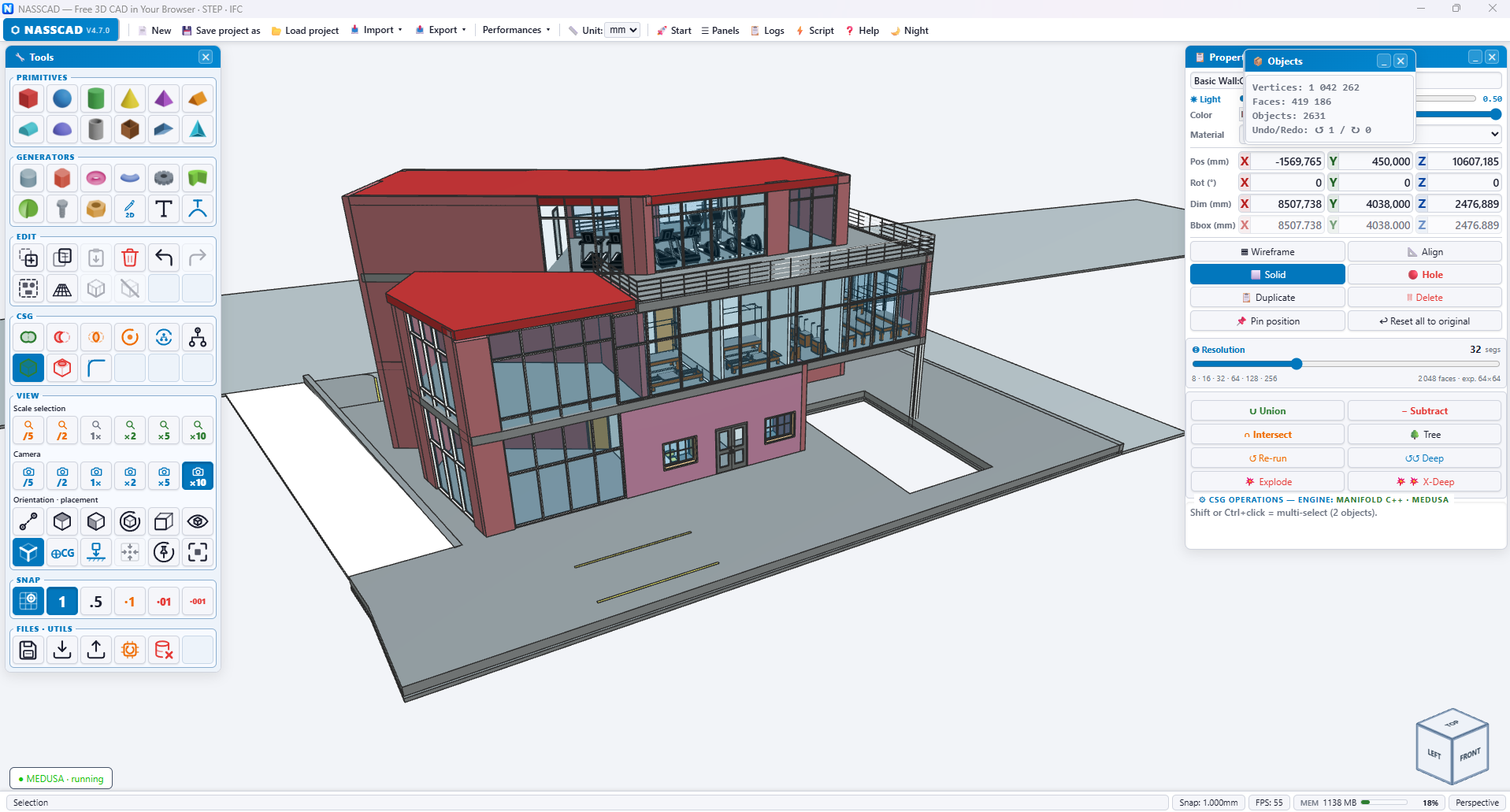
BIM models are full of data, but visualisation tools want meshes. Drop an IFC file: NASSCAD reads its geometry and colours, then exports OBJ, GLB or STL.
Then choose Import. Files are read on your computer and never uploaded.
Pick the right target
| Destination | Format | Why |
|---|---|---|
| Blender, renderers | GLB or OBJ | GLB keeps colours as materials, in metres; OBJ carries vertex colours, in millimetres. |
| Web viewers, AR, real-time engines | GLB | One compact file, optional Draco compression. |
| 3D-printed scale model | 3MF or STL | Scale the building down first, then check it inside your printer's build volume. |
| Another BIM tool | IFC4 | NASSCAD writes tessellated IFC4 geometry. |
What converts — and what stays behind
Walls, slabs, roofs, windows and furniture arrive as separate objects with their colours, glazing included. Property sets, quantities, classifications and relationships remain in the original IFC: mesh formats have nowhere to store them. Keep the IFC as the reference model.
Steps
- Drop the IFC file above, or open NASSCAD and choose Import.
- Hide what you do not need — furniture, site, spaces.
- Export OBJ, or GLB and 3MF from the same Export menu.
Questions people ask
Which IFC versions are supported?
IFC2X3, IFC4 and IFC4X3 files are read with web-ifc. NASSCAD exports IFC4 with tessellated geometry.
Can I make a 3D-printed architectural model?
Yes. Scale the model to the size you want, export 3MF or STL, and check thin walls: at 1:200 a 20 cm wall is only 1 mm thick.
Is the model uploaded?
No. Building models often contain sensitive information; NASSCAD reads them in your browser and never sends them.
Why are some elements missing?
Elements without geometry in the file, or with geometry web-ifc cannot read, are skipped. Check the import log.